The COVID-19 pandemic has resulted in millions of people being subjected to lockdowns and so-called social distancing in a bid to beat the illness. There are loads of tips for those forced to work from home, but what about after-hours?
We’re all a bunch of geeks here at Android Authority, and with that in mind, we thought of some things you could do with various gadgets and some free time.
1. Repurpose your old smartphone
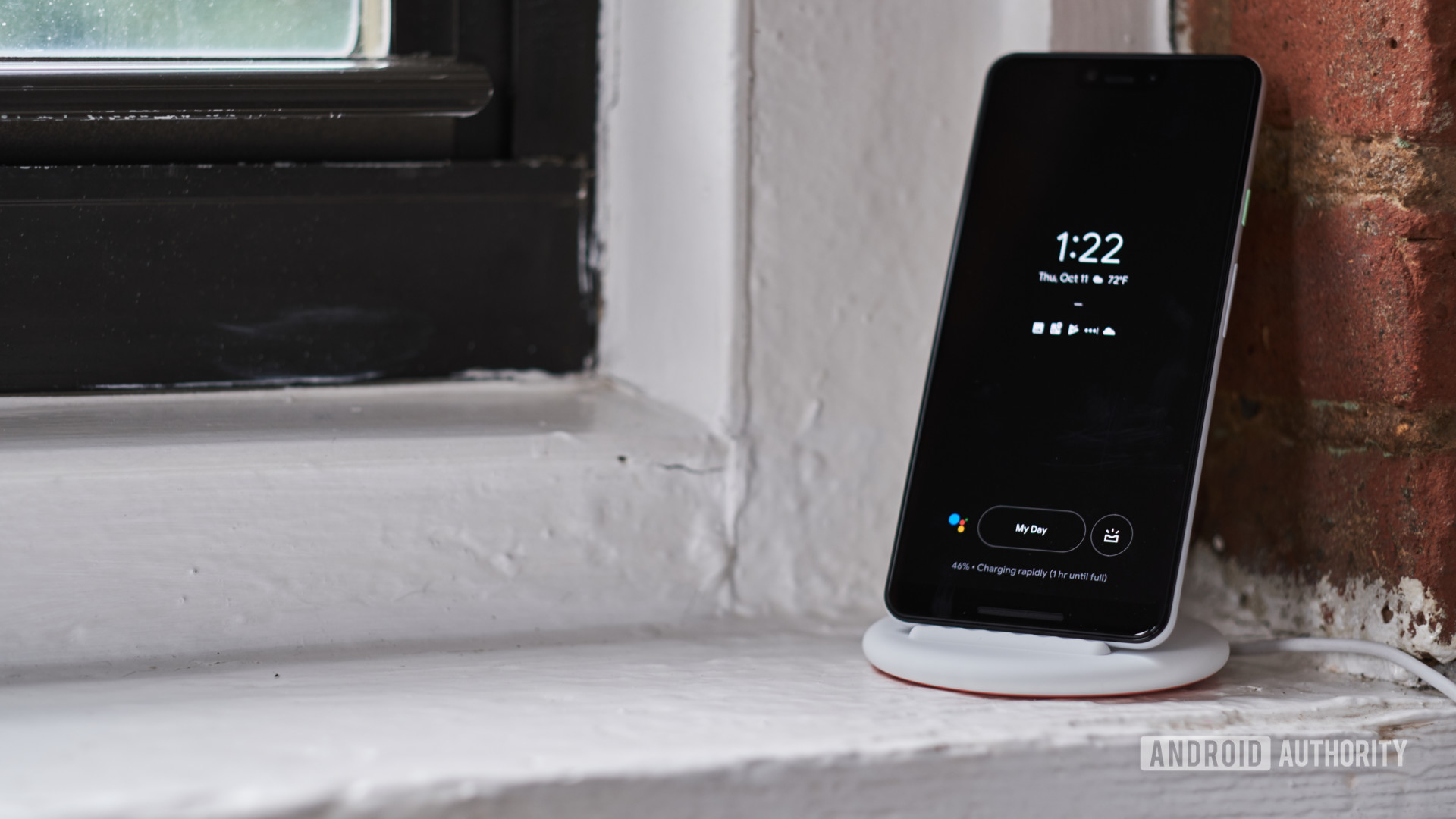
The first thing you can do during your COVID-19 induced downtime is to grab your old smartphone and repurpose it. And there are loads of uses for an old phone.
One of these uses is a smart alarm clock, combining a phone, always-on display, and a charging dock. And when you combine this setup with always-on voice assistants, you’ve got an ad hoc smart speaker. The Google Pixel Stand, seen above, is one example of this tech.
Read: 10 great uses for old Android phones and tablets
You could also turn your old phone into an emulation station, downloading a variety of emulators, and connecting a Bluetooth controller and external display. In fact, a two year old budget phone should be able to play everything up to Sega Dreamcast titles with virtually no effort, while a two year old flagship should be able to play PSP titles pretty easily too.
Got an old tablet around? Then there are quite a few more possibilities, such as turning it into a smart display in the kitchen, using it as a smart home hub, and turning it into a large smart alarm clock.
2. Build a DeX station
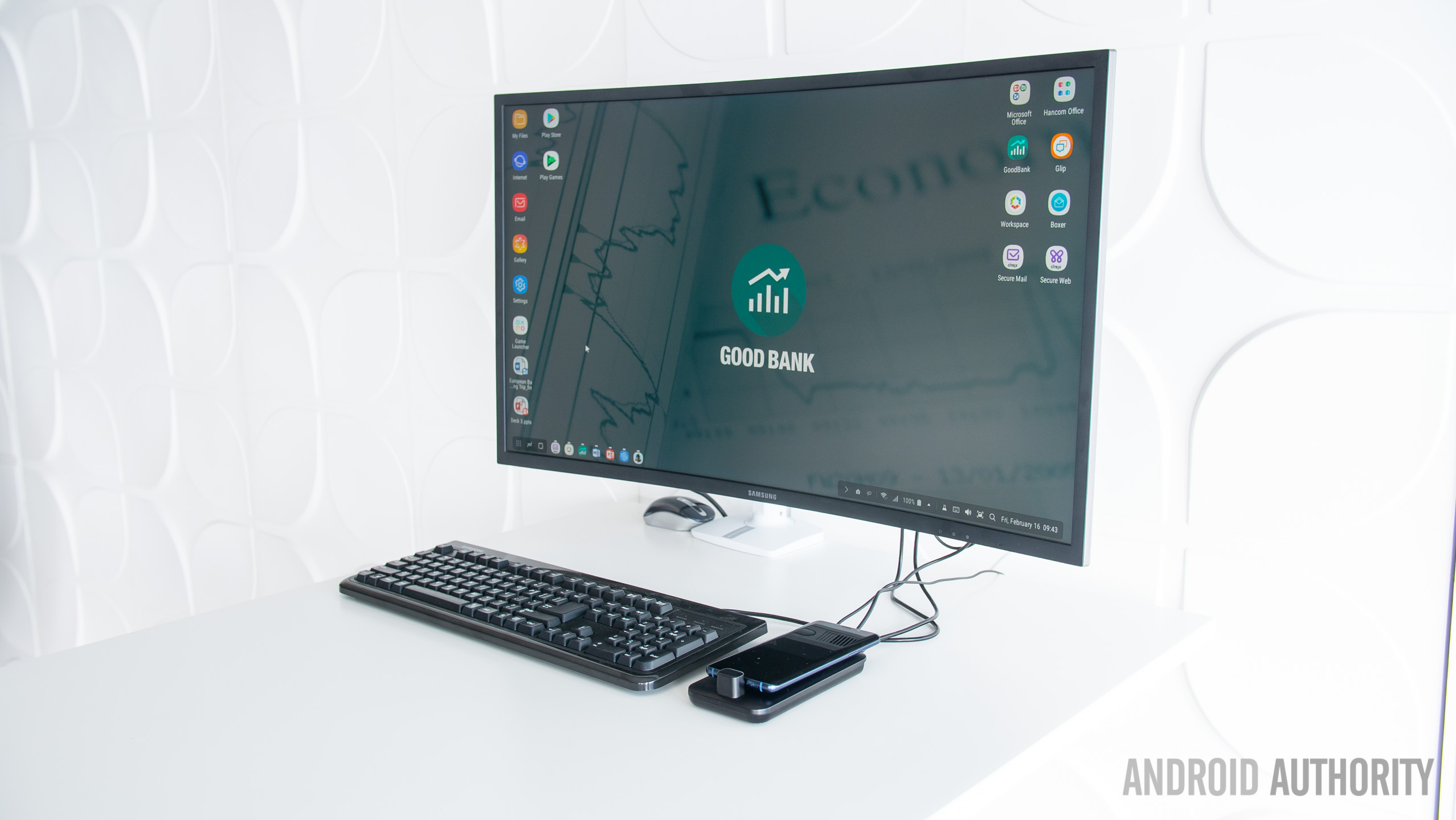
Huawei and Samsung both offer a desktop mode on their recent flagship phones, giving you a PC-style UI when connecting your phone to an external screen.
So another activity you might want to do in your free time is to build a setup for desktop mode/DeX. You’ll need a USB-C to HDMI cable (although some devices can do it wirelessly), a phone with a desktop mode, and a Bluetooth keyboard and mouse. For what it’s worth, Samsung’s older DeX-enabled devices require a specific dock too, as opposed to a USB-C to HDMI cord.
3. Root/flash your phone

Rooting a smartphone gives you added control over your device, allowing you to do things like managing the device kernel, conduct more comprehensive backups, tweak audio capabilities, and more. Do note that rooting your phone often voids the warranty and can result in your banking apps not working. So you might want to use a secondary device if you’re not so sure about this.
Read more: Everything you need to know about rooting your Android phone
If you want to take things a step further, you can even install a custom ROM on your phone. This gives you a new Android experience with tweaked features and behaviors — ideal if you’re tired of your phone’s current firmware. Some of the more popular custom ROMs include LineageOS, PixelExperience, and Resurrection Remix OS.
4. Play PC VR games on your phone

One of the more offbeat options on the list is to play PC VR games on your phone, and this is possible thanks to software like VRidge. By running the software while your phone is placed into Google Cardboard, the Gear VR, or another mobile VR headset, you can effectively fool your PC into thinking your phone is an Oculus Rift or HTC Vive. This means you can play games like Project Cars and Elite: Dangerous in VR.
There are a couple of caveats though, with the first one being that you need a gaming PC to do all the heavy lifting still. Furthermore, the actual experience can be pretty glitchy depending on your setup.
The VRidge software is available as a free trial, but it’ll set you back €15 ($16) if you decide to take the plunge.
5. Get a Raspberry Pi and install all the things
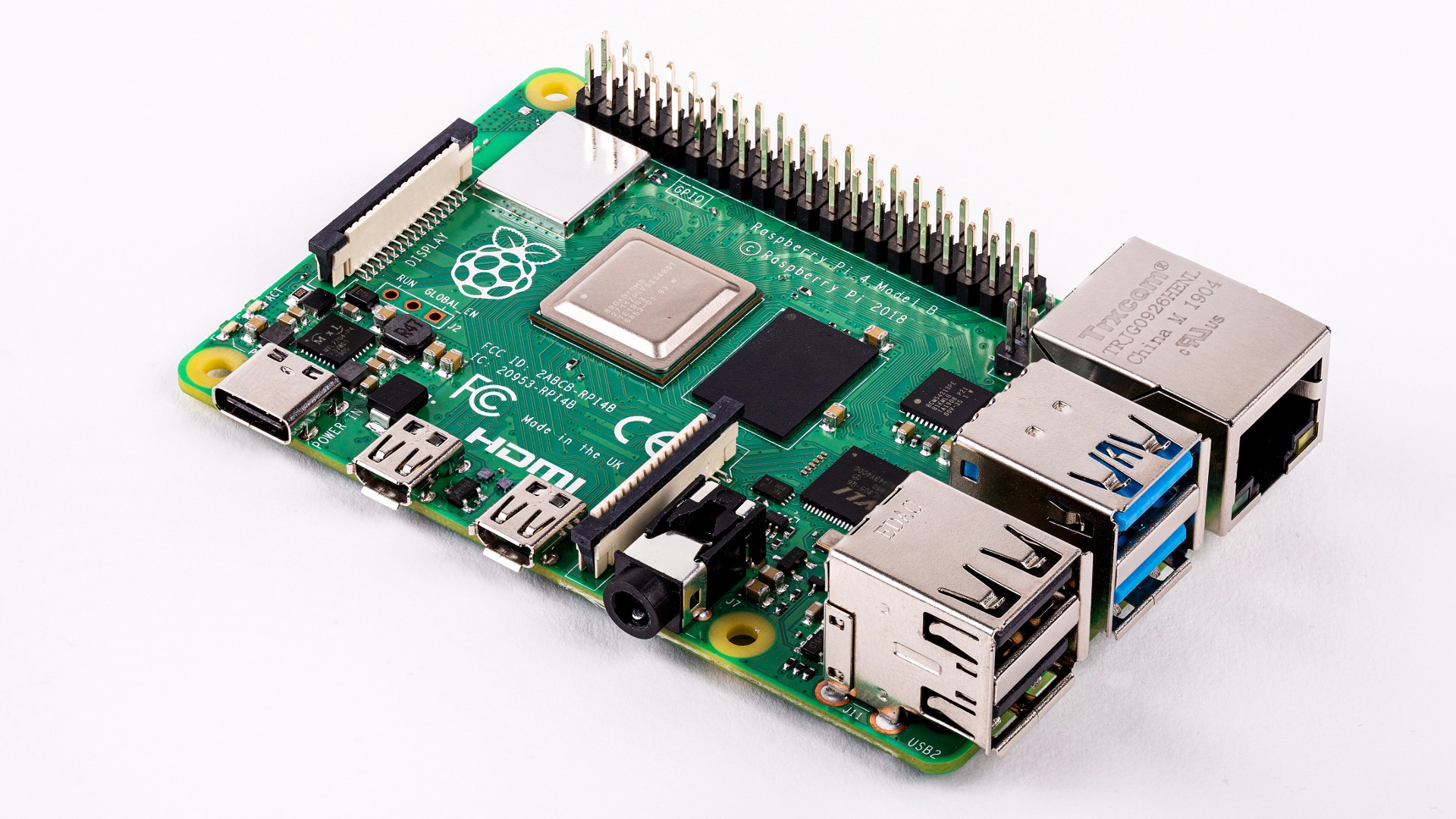
The Raspberry Pi is another fantastic piece of kit, delivering a versatile platform for a number of projects. And the Raspberry Pi 4 only ups the ante thanks to the various RAM offerings and the upgraded CPU cores.
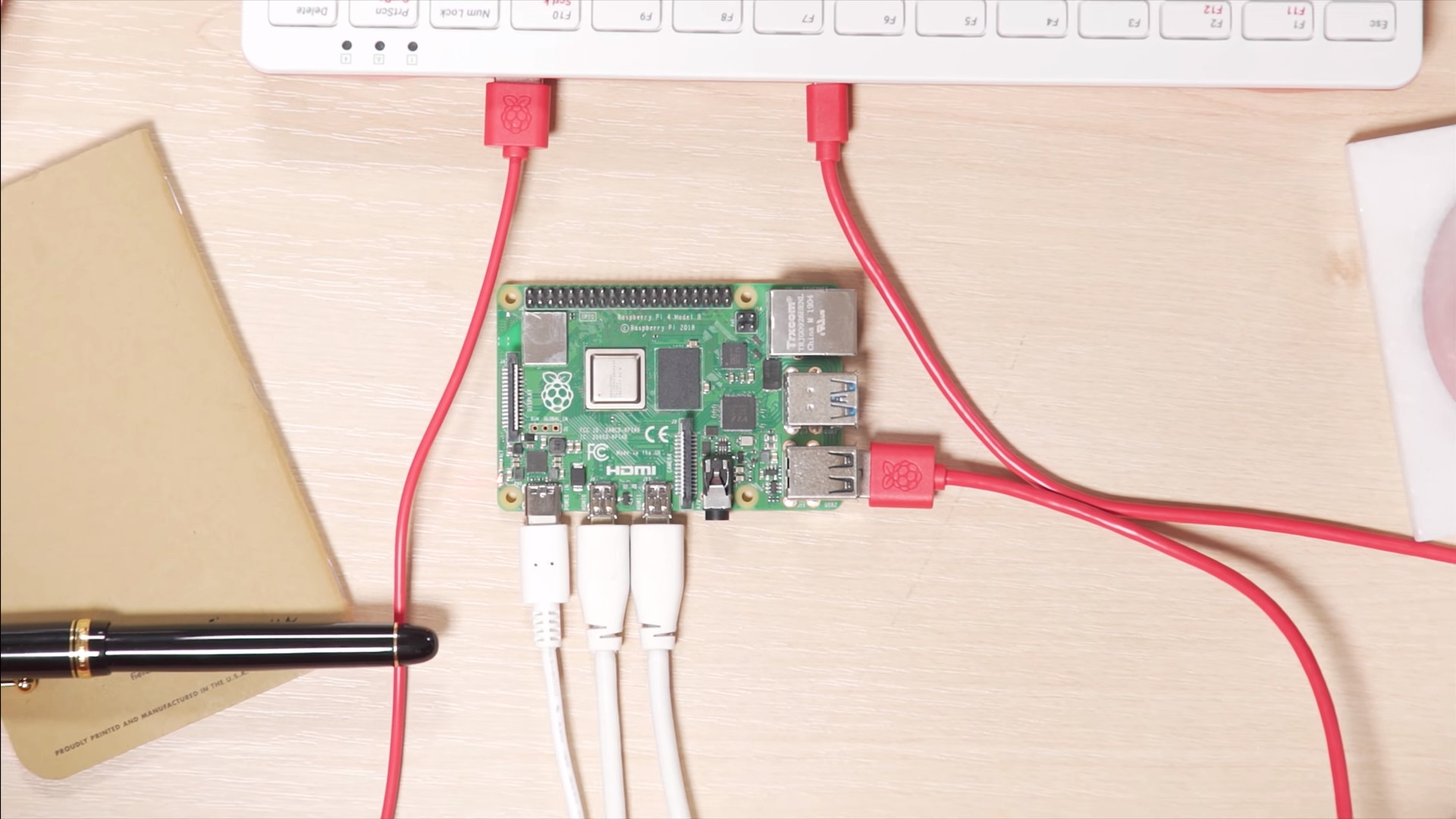
There are loads of Raspberry Pi projects out there, starting with operating systems. You can install Raspbian (a Pi flavor of the Debian distribution), other Linux distros, Android, and even Windows 10 on Arm (albeit unofficially).
There are even a few more uses for the Raspberry Pi, such as an emulation platform, Google Assistant, web server, media center, and game server. And you’re only scratching the surface of what you can do with this credit card-sized wonder.
6. Hack your old gaming console

Got a gaming console around that isn’t getting much use? Or maybe you just want a challenge? In any event, hacking the machine is another activity worth trying.
Modern gaming machines can be tough nuts to crack, and you’re risking a lot of money if something goes wrong. But you can always try hacking an older console if you have one around, especially if they’re hardly used in the first place. In fact, I recently hacked my launch model PS3 and, as someone who doesn’t have much experience in this field at all, it was a pretty rewarding experience.
Hacking your console allows you to do things like run a media server, play emulators, and run backups. Of course, you need to own those games before you back them up.
It’s worth noting that, much like rooting and flashing a custom ROM, you hack your console at your own risk. You should also sign out of your console before you try to hack it, as online services can often detect a hacked machine and ban your account.
7. Watch YouTube for more projects!
There are loads of YouTube channels out there if you’re looking for even more geeky activities and projects. In fact, our very own Gary Sims has a channel in case you haven’t seen it, and he has plenty of videos devoted to various subjects and tutorials.
Some of Gary’s more prominent tutorials include building a flight tracker using a Raspberry Pi, and learning SQL. But there are quite a few more explainers and guides to be had, covering microcontrollers, programming, and more.
These are some of the geeky things you can do with your devices during the COVID-19 lockdown that we were able to think of, but can you think of a few more geeky endeavors? Let us know in the comments!
More posts about tech


from Android Authority https://ift.tt/2QxXemG


