Given the ongoing health crisis and the need for social distancing, it’s no surprise that there’s been a huge surge in the use of video conferencing apps. Be it for work or to keep in touch with friends and family, Google Hangouts — in its classic form as well as Hangouts Meet for business — remains a popular option for many. Unfortunately, like any app or software, Hangouts has its fair share of problems. We take a look at some common issues that uses have come across and workarounds to fix them.
1. No notification sound when receiving a message or call
Users aren’t getting notification sounds when receiving a message or a call on Hangouts and have missed important messages because of this bug. People have come across this issue on both smartphones and on the PC or Mac when using the Hangouts Chrome extension. If you’re seeing this problem on a smartphone, there’s a simple workaround that seems to have worked for many.
How to fix notification sound issue on Google Hangouts
- Open the app and tap on the three vertical lines icon at the top left corner.
- Tap on Settings and then the primary account name.
- Under the Notifications section, select Messages and open the Sound settings. You might have to first tap on Advanced to get to it.
- The notification sound may be set to “Default notification sound.” If that’s the case, open this section and change the alert tone to something else. You should now get notification alerts as expected.
- To fix the problem with incoming calls, repeat the same steps after going to the Notification section and selecting Incoming calls instead of Messages.
Unfortunately, a similar workaround isn’t available if you’re facing this problem on a computer. Some users have found that simply removing and reinstalling the Hangouts Chrome extension seems to do the trick.
2. The camera isn’t working

Quite a few users are facing this problem where the laptop or PC camera isn’t working during a video call. The app usually gets stuck on the “camera is starting” message. There are a bunch of workarounds that have worked for different people. Unfortunately, some continue to face this issue and the only real option is to wait for a software update.
How to fix camera problems during a Hangouts video call
- Fixes for camera issues have been a recurring part of most Google Chrome updates. Some have found that updating the browser to the latest version has helped.
- A few users are facing this problem because their PCs or laptops have two graphics cards, both integrated and discrete. For example, if you have an Nvidia graphics card, open the Nvidia control panel and go to 3D settings. Select Chrome and enable Nvidia High-Performance GPU. Switching to the Nvidia graphics card seems to work.
- Along the same lines, ensure that your video drivers (even if you don’t have two graphics cards in your system) are updated.
- A lot of users have found that Chrome is the culprit. It’s not very convenient, but simply using another browser works. Firefox only supports Hangouts Meet and not the classic extension anymore though. In the case of the latter, you will have to use Microsoft Edge.
3. Google Chrome causes audio and video problems
Audio and video problems occur with any video chat app and Hangouts is no different. If you’ve faced such issues when using the Chrome extension, it might be because of other extensions you’ve installed.
For example, some users found that while they could hear others on a call, no one could hear them. If you have a lot of extensions installed, remove them one by one to see if the issue goes away. Unfortunately, you’ll have to choose between Hangouts and that extension if it turns out to be the cause of this problem, until a software update is available.
In some cases, users have found that the mic and audio stop working 5 minutes into a call. Restarting the call only fixes the problem temporarily. This issue is caused by the Chrome browser and a future software update should address it. Some users have found that switching to Chrome Beta does the trick as well.
4. A green screen replaces video during a call

Some users have complained about seeing the video replaced with a green screen during a call. The audio remains stable and usable, but neither party can see the other. This problem is only seen by people using Hangouts on a computer. Luckily, there’s a workaround available that has worked for most.
How to solve the green screen issue during a Hangouts video call
- Open the Chrome browser. Tap on the three vertical dots icon at the top right corner and open the Settings page.
- Scroll down and click on Advanced.
- Scroll down and search for Use hardware acceleration where available and disable this feature.
- Alternatively, or if you’re using a Chromebook, type chrome://flags into the Chrome address bar.
- Scroll down or search for Hardware-accelerated video encode and disable it.
A lot of users have come across this problem recently on a Mac. It seems like a Mac OS update has caused the problem, and the only option may is to wait for a software fix.
5. Guide — How to clear app cache and data
Clearing the app cache, data, and browser cookies is a good first step for general troubleshooting. You can solve a lot of Hangouts problems by doing this.
How to clear Hangouts cache and data on a smartphone
- Go to Settings > Apps & notifications > All apps. Keep in mind that the steps mentioned may be different depending on the phone you have.
- Scroll down or search for Hangouts and tap on it.
- Tap on Storage & cache and then select both Clear storage and Clear cache one after the other.
How to clear the cache and data on Chrome
- Open the browser and click on the three vertical dots icon at the top right corner.
- Go to More tools > Clear browsing data.
- You can choose a time range, but it might be a good idea to select All time.
- Check the boxes for Cookies and other site data and Cached images and files.
- Click on Clear data.
- In this case, you’re clearing cache and data for the Chrome browser and not just the Hangouts extension. You might have to re-enter passwords and log in to certain sites again.
6. Guide — How to adjust video settings to save data
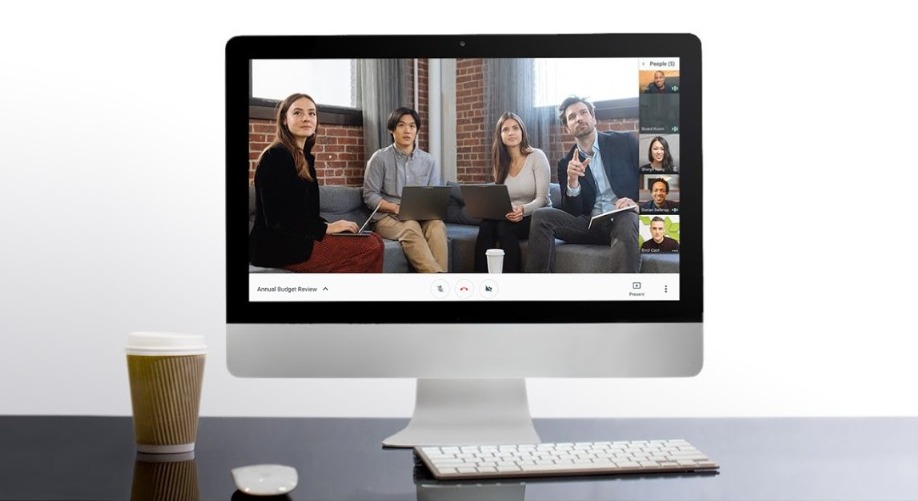
If you or the other party are seeing choppy, stuttering, or pixelated video, a slow Internet connection may be the cause. Video also requires a lot more data than audio calls. So if you have an Internet plan with data caps or you just want to save bandwidth, lowering the video settings may be a good idea.
How to adjust video settings on Hangouts
- You can only get to these settings during a call.
- Once the call has started, move your mouse over the call window until the call controls show.
- Click on the cog icon to open the settings.
- Click on Bandwidth in the pop-up that appears.
- You can adjust the video quality of both the incoming and outgoing streams. Only two choices are available — HD (720p) and SD (360p).
Set it to the lower setting if the Internet connection is poor or you want to save data. Users may not see the best video, but the audio will be stable and the video won’t lag or be choppy.
7. Guide — Difference between classic Hangouts and Hangouts Meet
Google announced plans back in 2017 to stop supporting classic Hangouts and switch to Hangouts Meet and Hangouts Chat. That deadline, set for June 2020, is fast approaching. Hangouts Meet, recently renamed to Google Meet, is already available for business users with G Suite accounts. Eventually, everyone will be moved to the new app.
We hope that this roundup has helped you solve any problems you might have run into while using Google Hangouts. Still not sure about what the best video chat or conferencing app is for you? Don’t forget to check out our app comparisons like Hangouts vs Skype and Hangouts Meet vs Zoom.
from Android Authority https://ift.tt/3c7N7xc